Installing Notepad++
Notepad++ is a lightweight but advanced text editor that is very popular. Lifehacker rated it the #1 text editor.
Installation
To install Notepad++, go to notepad-plus-plus.org and click Download, then click Download the current version and follow the installation prompt.
Highlighting .uc Files
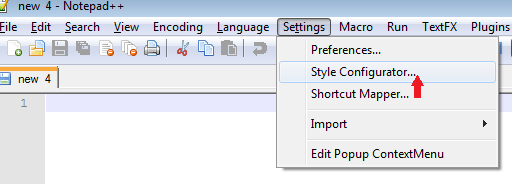
By default, Notepad++ does not know what kind of code .uc files contain, so it does not know how to highlight them. Since UnrealScript is similar to the C language, we will tell Notepad++ to treat .uc files like .c files. To do this, go to Settings > Style Configurator.
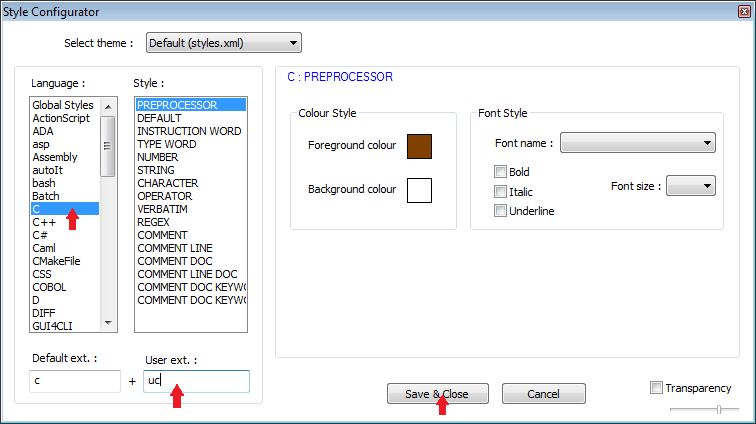
In the Style Configurator window, select C from the list on the left, then type uc in the User ext. box below, then click Save & Close.
Explorer Plugin
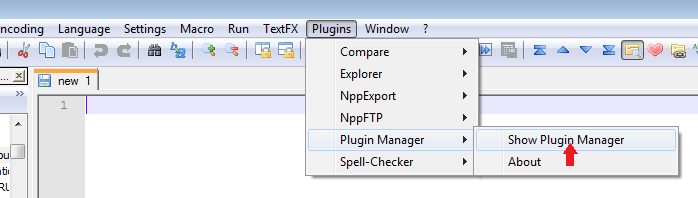
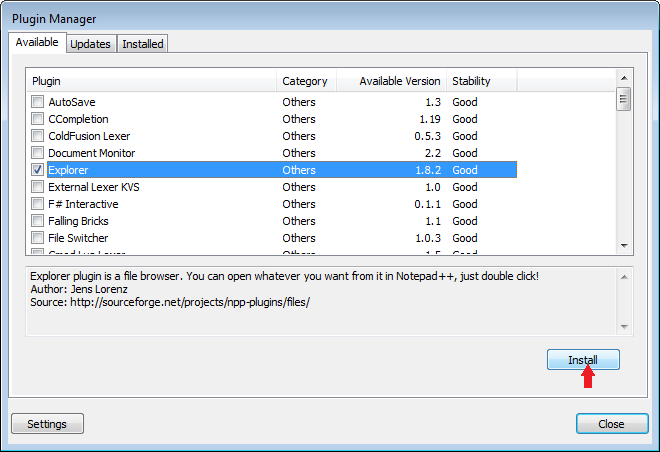
One integral feature that you should enable is the Explorer plugin. To do this, go the Plugins > Plugin Manager > Show Plugin Manager
In the Plugin Manager, find the Explorer line, and tick the box next to it, then click Install
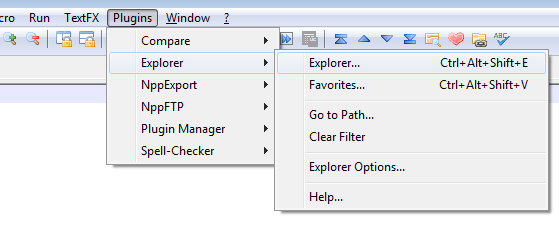
Notepad++ should automatically restart, and when it does, you can enable the file explorer by going to Plugins > Explorer > Explorer.
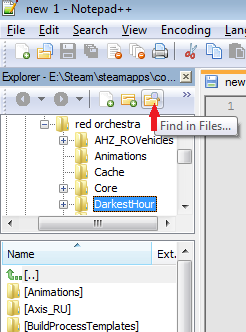
From here you can browse to your Red Orchestra or Darkest Hour directly to easily view code files. In addition, you can search for a string inside an entire directory. To do this, highlight the desired directory in the panel and click the Find in Files icon at the top of the Explorer panel.
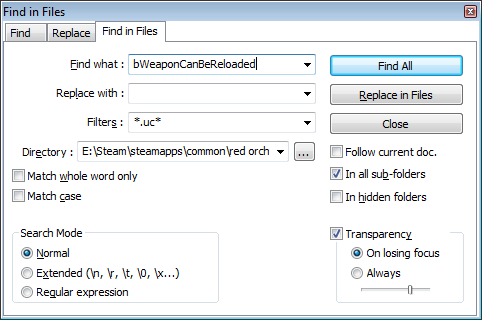
Simply type in the string you are looking for, set the Filter to *.uc* to limit the search to files with that extension, and ensure the directory is correct, then click Find All and wait for the results.